Blog
Continuous Integration

GitHub Actions Support in Harness CI | Harness Blog

Harness CI integrates GitHub Actions, enabling streamlined CI pipelines with powerful pre-built actions for seamless software development.

TL;DR

Harness CI now supports GitHub Actions, allowing users to leverage over 10k pre-built actions from the GitHub marketplace in their CI pipelines. This integration simplifies task automation, from code cloning to vulnerability scanning, enhancing the efficiency and flexibility of CI workflows.

In this article, we will learn about GitHub Actions support in Harness CI and how plugin extensibility helped templatizing action as a plugin step.

GitHub Actions let you create custom actions that can perform predefined tasks. These predefined tasks range from cloning a codebase to building a Docker image and security scanning images. Previously-created actions are present on the GitHub marketplace, with a rich support of over 10k actions.

Harness CI has added support for running GitHub Actions. This addition means that GitHub Actions can be used via the plugin step in a CI pipeline.

Usage

GitHub Actions YAML contains three attributes:

  1. name: Refers to the GitHub repository of the action along with the branch or tag.
  2. with: A map with a key and value as string. These are action inputs.
  3. env: Environment variables passed to the action.

You must copy with, uses, and env attributes in the plugin step settings to use a GitHub action as a plugin in Harness CI. You must also run the step in privileged mode since the GitHub action plugin uses Docker in Docker (dind).

The following is a side-by-side comparison of action YAML in GitHub actions vs. Harness CI:
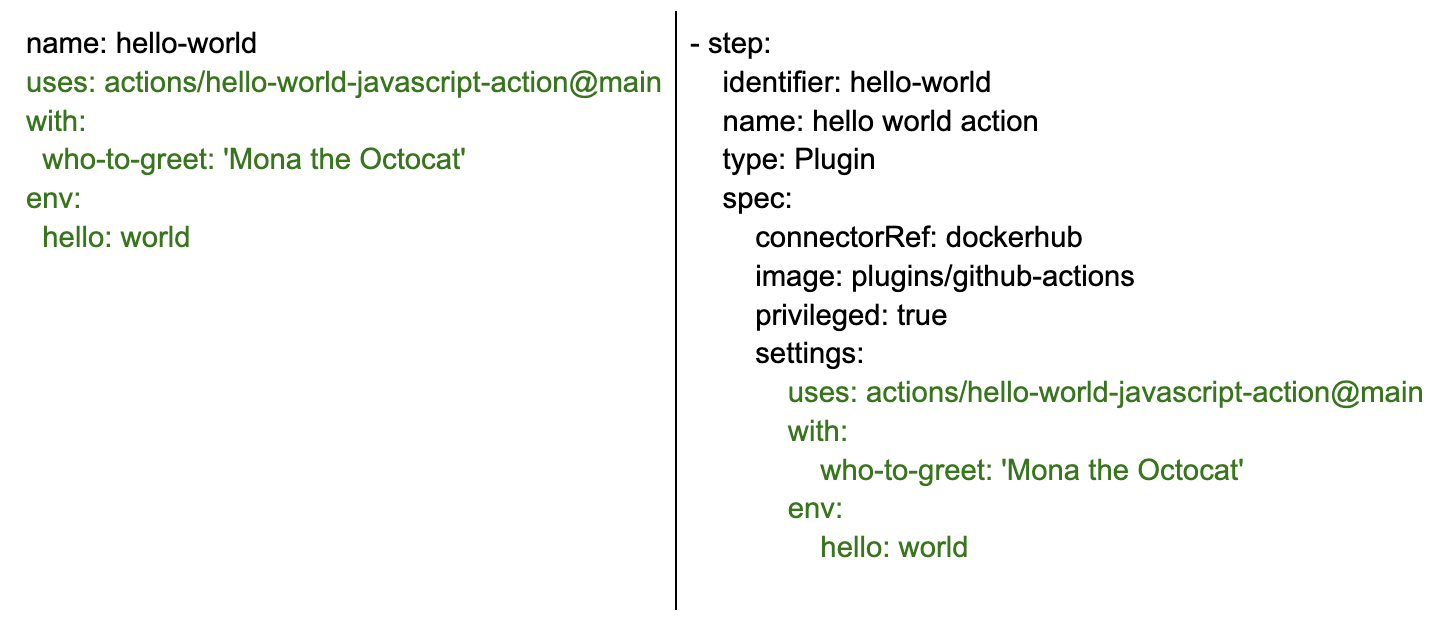
Side-by-side YAML comparison of a GitHub Action on the left and its equivalent Harness CI step on the right
A comparison of action YAML in GitHub actions vs. Harness CI

The following are some examples for using actions in Harness CI.

Trivy Scanning Action

Trivy is an open-source scanner for detecting vulnerabilities in container images, git repositories, and much more.

The following example scans “drone/git” container image using trivy in Harness CI.

- step:
     identifier: trivy
     name: Run Trivy vulnerability scanner
     type: Plugin
     spec:
         connectorRef: dockerhub
         image: plugins/github-actions
         privileged: true
         settings:
             uses: aquasecurity/trivy-action@master
             with:
                 image-ref: drone/git
                 format: table
                 exit-code: "1"
                 ignore-unfixed: "true"
                 vuln-type: os,library
                 severity: CRITICAL,HIGH,LOW
             env:
                 CI: true
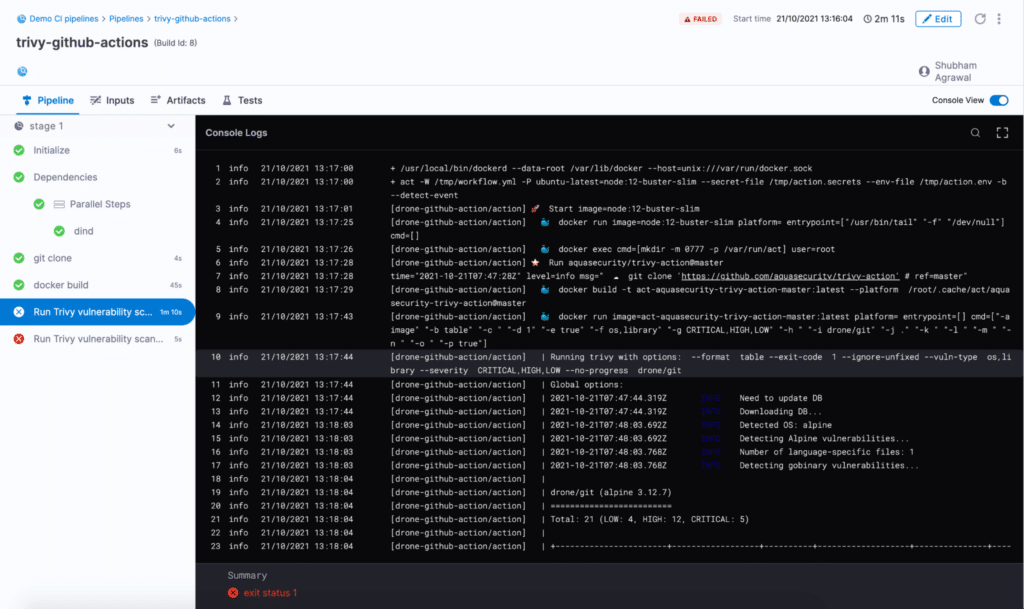
Trivy GitHub Actions Example

GCS Upload Action

The GCS upload action can be used to upload a file to Google Cloud storage.

- step:
    identifier: gcs-uploader
     name: upload file to GCS
     type: Plugin
     spec:
          connectorRef: dockerhub
          image: plugins/github-actions
          privileged: true
          settings:
               uses: google-github-actions/upload-cloud-storage@main
               with:
                    path: '/path/to/file'
                    destination: demo/gcs
                    credentials:
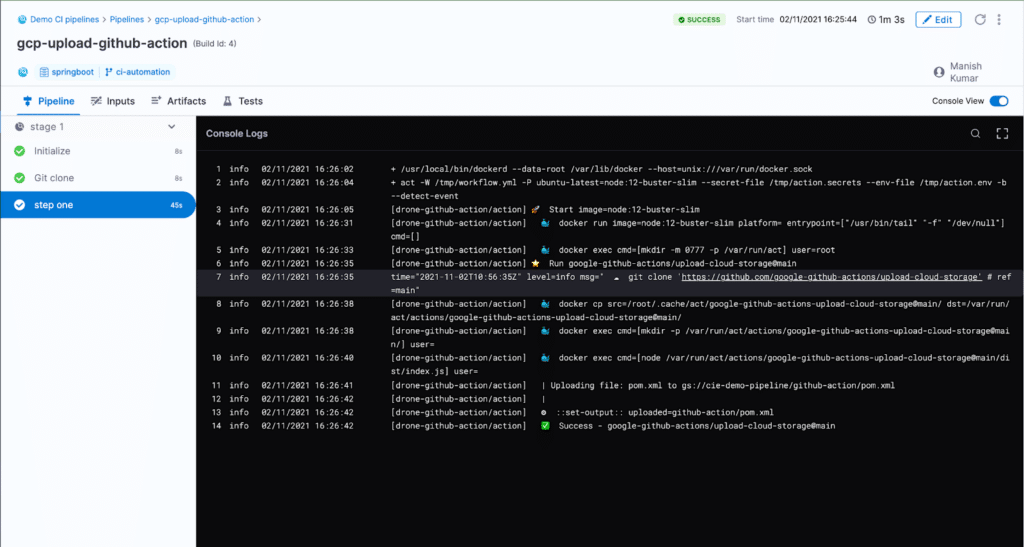
GCP Upload GitHub Actions Example

Git Checkout Action

The Git checkout action is used for cloning the GitHub repository codebase. This action can be used to clone one or more git repositories in a single stage in Harness CI.

The following example clones the primary repository present in the trigger payload. It is required to specify GITHUB_TOKEN as an environment variable to the step for cloning private repositories.

- step:
     identifier: checkout
     name: checkout GitHub action
     type: Plugin
     spec:
         connectorRef: dockerhub
         image: plugins/github-actions
         privileged: true
         settings:
             uses: actions/checkout@v2
            with:
                 ref: ${{ GitHub.event.pull_request.head.sha }}
                 event_payload: <+ trigger.eventPayload>
         envVariables:
                GITHUB_TOKEN: <+secrets.getValue("token")>
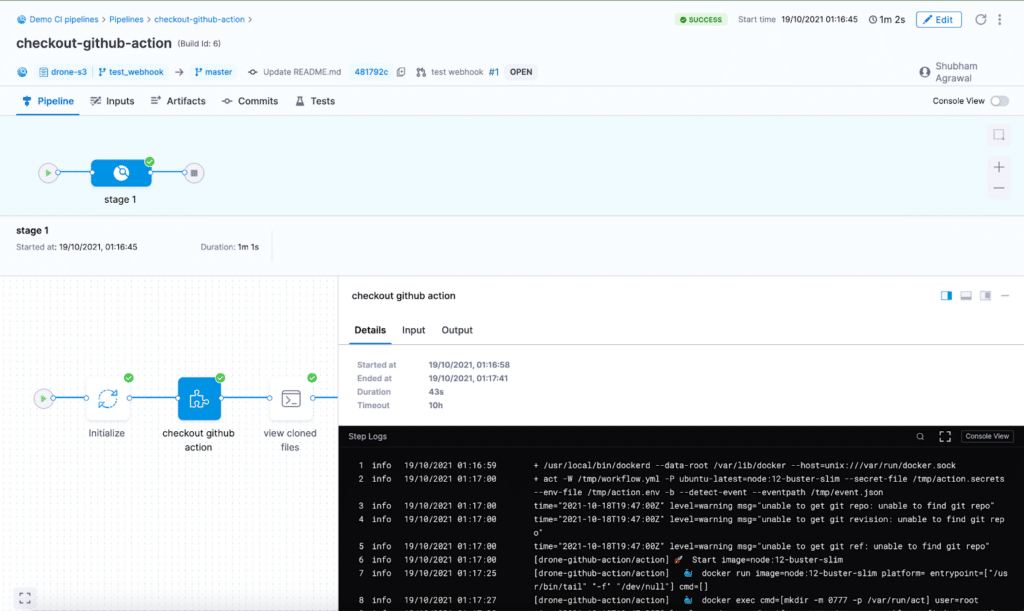
Checkout GitHub Actions Example

You must specify the repository name in the plugin step settings to clone a second repository.

- step:
     identifier: checkout-repo-by-name
     name: checkout GitHub repository by name
     type: Plugin
     spec:
         connectorRef: dockerhub
         image: plugins/github-actions
         privileged: true
         settings:
             uses: actions/checkout@v2
             with:
                 repository: my-org/my-private-tools
                 path: my-tools
                 ref: ${{ GitHub.event.pull_request.head.sha }}
             event_payload: <+ trigger.eventPayload>
         envVariables:
             GITHUB_TOKEN: <+secrets.getValue("token")>

Implementation

GitHub Actions works by cloning the repository specified in the `uses` attribute and executing the steps present in the `action.yml` file from the cloned action code.

The CI plugin for GitHub action uses nektos/act, which is an open-source project to execute GitHub Actions locally. Nektos/act runs a Docker container on which the GitHub action workflow is executed. The CI plugin creates a workflow for the input action step, and then executes it via nektos/act. The following is the link for the plugin source code: Plugin Source Code

Conclusion

We have shown that the extensibility and simplicity of plugins in Harness CI enabled the addition of many actions with just a single plugin. This demonstrates just how pluggable Harness CI can be. I hope you try your favorite action in Harness CI, and possibly create your own plugin for your custom-tailored tasks.

For further reading on Harness CI, why not take a gander at our Migrating From Jenkins to Harness CIE piece? 

Checkout comparisons: Harness v.s. GitHub Actions

← Previous:
Next: →

Related Resources

GitHub Actions Plugin for Reusable CI/CD Pipelines

Continuous Integration

GitHub Actions Plugin for Reusable CI/CD Pipelines

April 26, 2024

Dewan Ahmed

+ more
Time to Read

In this blog post, we'll explore how you can utilize the GitHub Actions Plugin step in your Harness Continuous Integration pipeline to create a versatile and robust continuous integration workflow. Crafting quality code within tight deadlines is a constant challenge for developers. Ensuring adherence to coding standards and best practices is crucial in this process. Harness Continuous Integration provides a solution by offering a variety of community plugins to help with code quality and beyond.

Reusable CI/CD Pipelines

Let’s ask a question:

Why do we need reusable CI/CD pipelines?

The answer lies in efficiency and consistency. Reusable CI/CD pipelines streamline the development process by providing a standardized workflow for building, testing, and deploying applications. Rather than reinventing the wheel with each project, developers can leverage pre-defined pipelines tailored to their organization's needs. This not only saves time but also ensures consistency across projects, reducing the risk of errors and promoting collaboration among team members.

Furthermore, reusable pipelines promote scalability and maintainability. As projects evolve and new features are added, having a modular, reusable pipeline allows for easy updates and modifications without the need to overhaul the entire process. This flexibility enables teams to adapt quickly to changing requirements and iterate on their workflows efficiently.

In the next section, we'll explain the technology behind GitHub Actions and then how we can leverage GitHub Actions within the Harness CI pipeline. By utilizing these plugins, we'll demonstrate how they enable the creation of numerous pipelines while maintaining reusability. We'll explore how these tools contribute to ensuring code quality and adherence to best practices throughout the development lifecycle.

The Anatomy of “Actions”

Do you know how actions run under the hood?

Actions encapsulate common tasks to reduce duplication of configuration in your pipelines. Behavior of an action is determined by the inputs passed. The code in the action runs, which can modify the pipeline environment, and potentially pass outputs to following steps in your pipeline.

Additionally, developers can use open source tools like act. to run actions locally for fast feedback and as a local task runner. act reads the actions from a directory, determines the set of actions to be run, and uses the Docker API to pull or build the necessary images defined in the action files. It then determines the execution path based on dependencies and runs containers for each action. The environment variables and filesystem are configured to match the environment provided by the platform.

This capability allows developers to test changes to their action files without needing to commit/push every time, providing fast feedback. Furthermore, developers can leverage the actions defined in their workflows to replace traditional task runners, reducing repetition and streamlining the development process.

GitHub Actions in Harness CI

Harness CI is based on Drone. Drone supports plugins, which can perform predefined tasks in your pipelines. Drone provides a GitHub Actions plugin, which is used by Action steps in Harness CI. The Drone GitHub Actions plugin is a wrapper around act. Harness CI also allows you to run actions from a private GitHub repository

Let’s use hello-world-javascript-action in a Harness CI pipeline. If this is the first time you’re creating a Harness pipeline, you can follow this getting started guide.

In this Harness CI configuration, a step is defined to execute a custom action named "Hello world." The step is identified by the name "Hello_world" for reference within the Harness CI environment.

The step configuration specifies the action to be used with the uses directive. The action is sourced from an external location, and its specific implementation is not provided in this context.

Additionally, input parameters are provided to the action using the with directive. In this example, the input parameter who-to-greet is provided with the value "Captain Canary."

In the pipeline log output, you will see the message printed.

Pipeline log showing drone-github-action running hello-world-javascript-action and printing "Hello Captain Canary!"
Pipeline execution log output from the above pipeline

Run other actions from the vast GitHub Actions marketplace, such as linters. Here is an example of using the golangci-lint action.

Harness CI Cloud (hosted build infrastructure)  offers isolated build environments on Harness-managed VMs with preconfigured tools and settings, simplifying CI pipeline setup and maintenance. With build credits for usage on preconfigured machines, starter pipelines for various languages, and rapid builds across Linux, macOS, and Windows, developers can leverage Harness Cloud to streamline software development while accessing the latest features ahead of other infrastructure options.

For other build infrastructures, you can run the Drone GitHub Actions plugin in a Plugin step.

Next Steps

Having explored the capabilities of Harness CI alongside examples like GitHub Actions and the super-linter plugin, it's clear that the key to efficient and effective CI/CD lies in the ability to leverage automation and maintainable workflows. By understanding how Harness CI operates under the hood and how to extend its functionality beyond its native environment, you've gained valuable insights into creating reusable pipelines that promote consistency and scalability in your development process.

If you’re using GitHub Actions, it’s time to transfer GitHub Actions into Harness CI.

How to Build CI Pipelines with GitHub Actions and Deploy to Kubernetes with Harness

Continuous Integration

How to Build CI Pipelines with GitHub Actions and Deploy to Kubernetes with Harness

May 11, 2020

Harness Team

+ more
Time to Read

GitHub Actions is an automated way of performing development workflows. These workflows, defined through YAML files, are stored in your GitHub repository under the .github/workflows directory. You can trigger these workflows three ways via an external event, a scheduled event, or a GitHub repository event (such as a push or pull request to a GitHub repo or issue creation). If you want to learn more about GitHub Actions, including the usage limits of the feature, see this documentation here

One way to use GitHub Actions is to create continuous integration (CI) workflows that build and test projects written in your application’s programming language. GitHub Actions is also able to publish artifacts to GitHub Packages or another package hosting provider such as Docker Hub. There is Dockerfile support for GitHub Actions, along with the ability to leverage actions built by other developers.

This blog post uses these GitHub Actions features with the Harness platform to continuously deliver a Kubernetes deployment. 

Ready Set Action!

If you’d like to follow along with this step by step guide you can find the now public repository with the application code here: GitHub. Otherwise you may use your own application code and Dockerfile.

To get started with GitHub Actions create a workflow, by selecting the Actions tab of the GitHub repository.

If you select the option to “set up a workflow yourself,” GitHub creates a main.yml file with the .github/workflows directory for you with a templated workflow that you can edit. 

Here I am creating a “build” and “create_dockerfile” job within my CI workflow. These jobs are the sequential steps within the workflow. A pushed commit triggers this workflow to the repo. Any steps that fail cause the workflow to quit at that failure. 

My create_dockerfile job requires credentials to my Docker account. To define those secrets go to Settings, Secrets, and Add a new secret. 

Also, note your Docker credential must have the authority to push and pull Docker images from your Docker Hub.

Once now trigger your GitHub Actions CI workflow, and view the details of each step within the workflow.

Here my image repository on Docker Hub has the newly pushed docker image named tictactoe as specified within my workflow. 

Harness Your Delivery

Now it’s time to deploy the new artifact to a Kubernetes environment with Harness. 

Under Setup, ensure you have a Harness Delegate installed in your environment, and it is currently running. Under Connectors, Artifact Servers ensure you have added an artifact server with valid Docker Credentials.

Under Setup Create a new application called tictactoe. Use this application view to create a service, environment and workflow to deploy the tictactoe application.

Here my application is deploying a single service called tictactoe. To pull the Docker image from my public Docker Hub repository I need the proper Source Server defined earlier and the corresponding repository information.

After specifying a targeted Kubernetes environment for deployment, create a Kubernetes deployment workflow. Here I am using a minikube environment to deploy the latest artifact.

When you are ready to deploy the artifact, hit the Deploy button and view the application deployment status.

Creating a deployment workflow is really easy and can be done in less than 3 minutes. This video is a step-by-step guide to deploying the tictactoe artifact with Harness.

Creating a workflow trigger within Harness is also very simple. Here I trigger the “deploy to minikube” workflow on the condition there is a new tictactoe artifact (docker image) ready to be deployed.

Master your development workflows

Github Actions allows developers to trigger software development workflows for a variety of application frameworks, runtimes, and languages. This blog posts how to set up a Continuous Integration workflow in GitHub Actions to build a deployable artifact. We then used Harness for Continuous Delivery of that artifact to a Kubernetes environment in less than 3 minutes. Try Harness CD for free to start delivering with unique developer workflows.

Learn more: Overcome long-term dependencies with dynamic process monitoring

Get Started

Get Started with Harness AI

Try the full platform free. No module restrictions, no credit card.

Shubham Agrawal
Senior Software Engineer II
Shubham is a software development engineer currently part of the Azure Storage Performance team.
shubham-agrawal
Shubham Agrawal